Guide for Reset Password
/ 1 min read
Table of Contents
Introduction
Our company enforces a password renewal policy every 120 days to maintain account security and protect company resources. Once your password is nearing expiration, you should renew it promptly to avoid account lockouts.
Below are the available methods to reset or renew your password.
1. Using the Account Reset Password Function in WorkspaceSteps to reproduce:
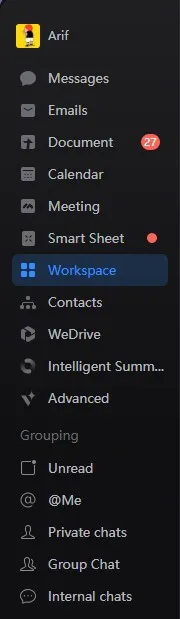
- Open Workspace from the left tab in WeCom.
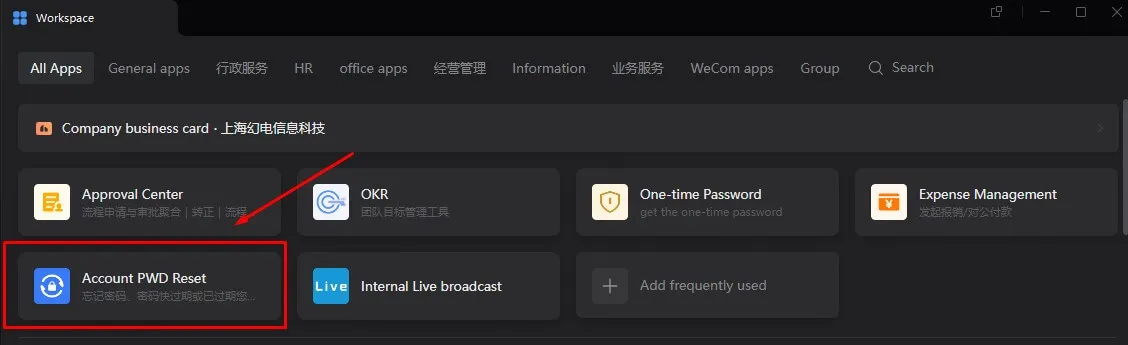
- Choose Account PWD Reset.
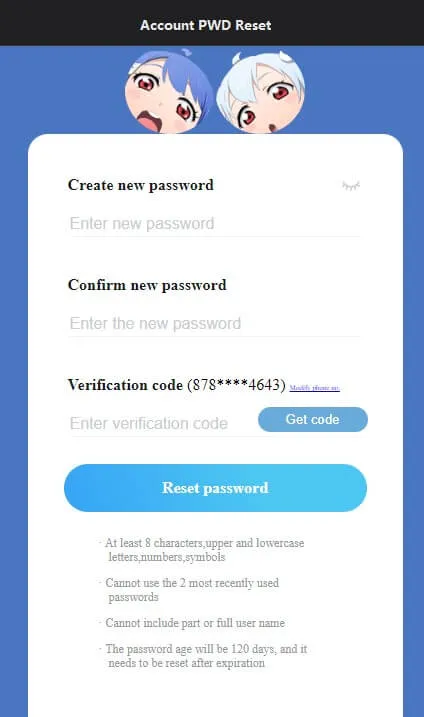
- Follow the steps provided in the form to complete your password reset.
2. Using the Reset Password Chat Application in WeCom ChatSteps to reproduce:
- Find Reset Password in the WeCom chat search bar.
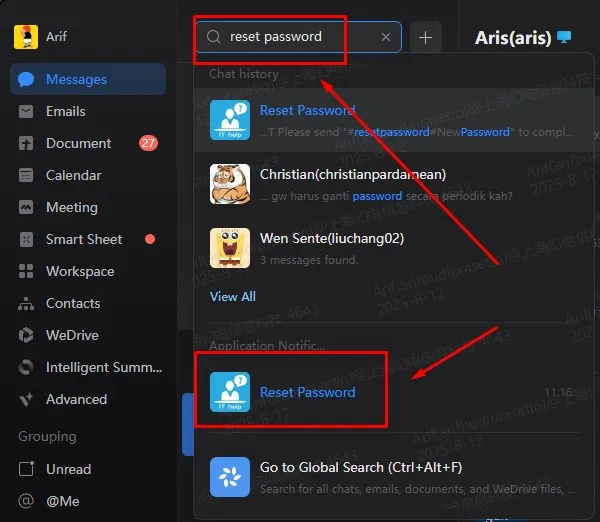
- Click the Expand button to open the chat and view the instructions.
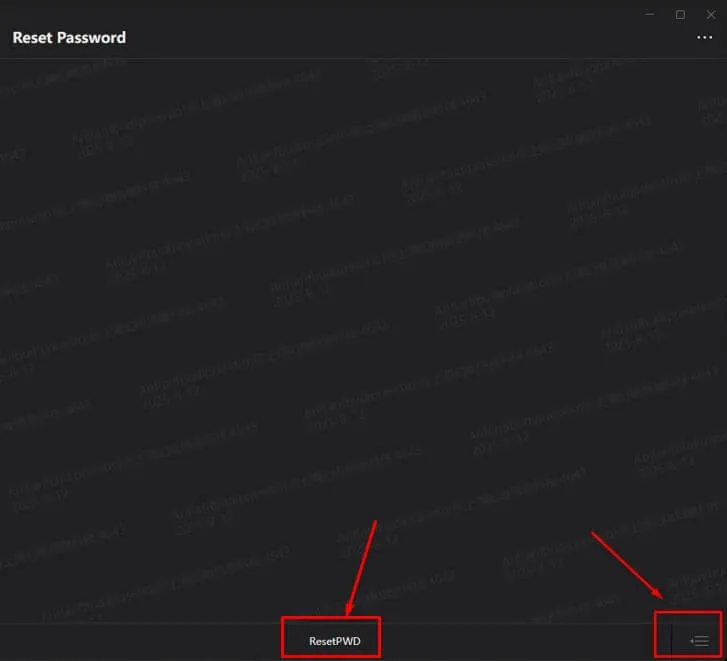
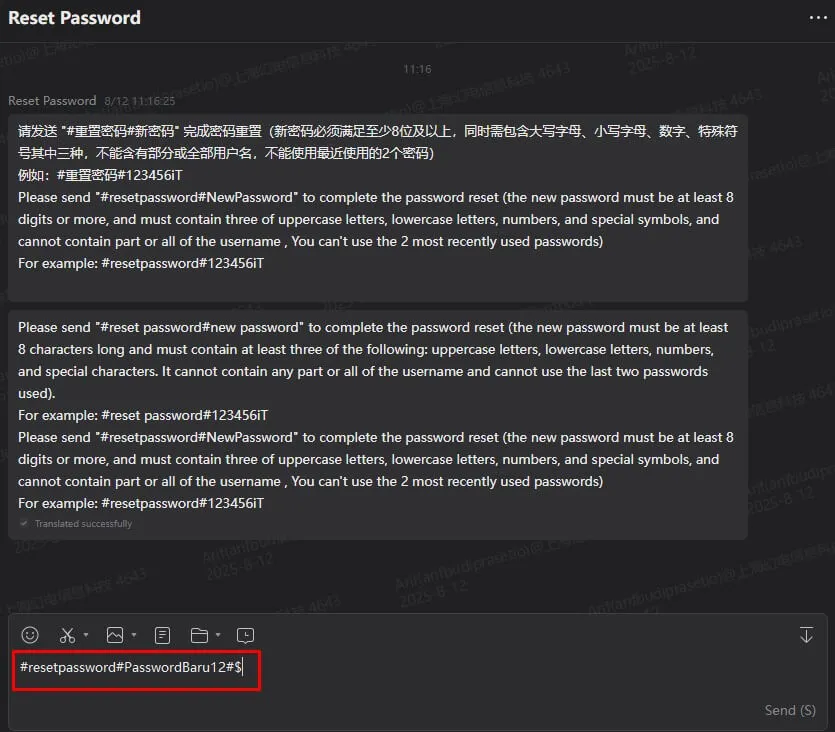
- Follow the reset format provided in the chat to reset your password.
the format is #resetpassword#newpassword and this is example of format #resetpassword#P@ssw0rd
3. Through IT Support (OTP Required)If you are unable to reset the password using method above, you can contact the IT team:
- Request password reset assistance from IT.
- IT will require an OTP (One-Time Password), which you can retrieve from your WeCom chat.
- Provide the OTP to IT so they can complete the reset.
Reminder
- Renew your password before the 120-day period ends.
- Use a strong and unique password.
- Never share your password with anyone.