How to Download and Set Up Bilibili VPN
/ 1 min read
Table of Contents
🚀 How to Set Up BVPN for Windows
Follow this step-by-step guide to install and connect to BVPN so you can access internal resources from your device.
📥 Download the installer
- 👉 Download the installer for Windows / MacOS / android / iOS Select based on your environment (Windows, macOS, Android, iOS).
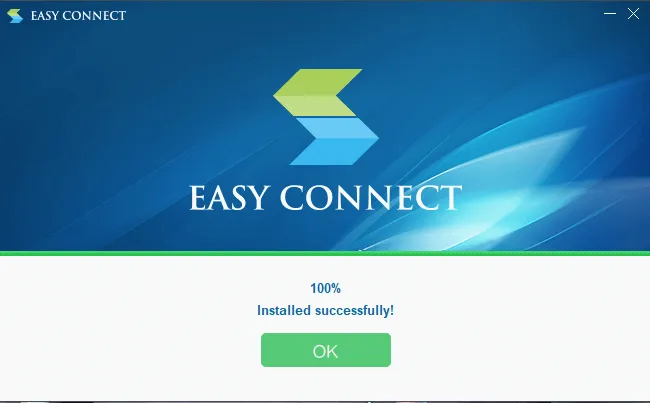
- 💾 Run the installer and follow the instructions until the setup is completed.
- ✅ Once installed, open the application.
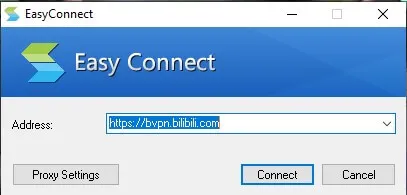
🔐 Connect to BVPN
- In the VPN address field, enter:
https://bvpn.bilibili.com
- Click Connect.
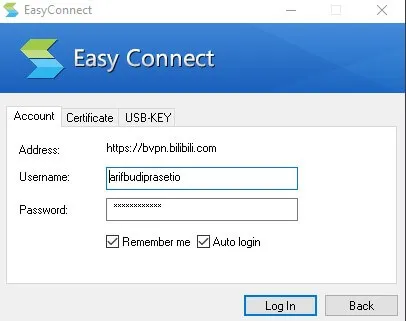
👤 Login to BVPN
- Use your Bilibili email username (without
@bilibili.com) as the username. - Enter your Bilibili password.
Example:
Username: arifbudiprasetioPassword: ••••••••Click Login.
🔑 One-Time Password (OTP)
- After login, you’ll be asked for a One-Time Password (OTP).
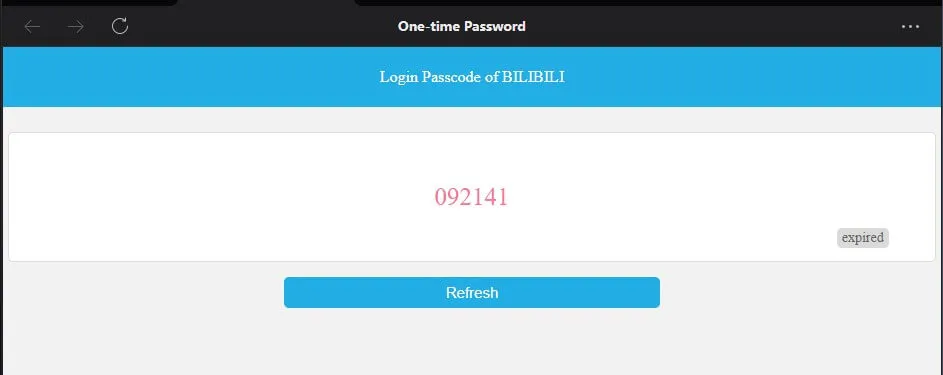
- Open WeCom, go to:
Workspace → One-time Password
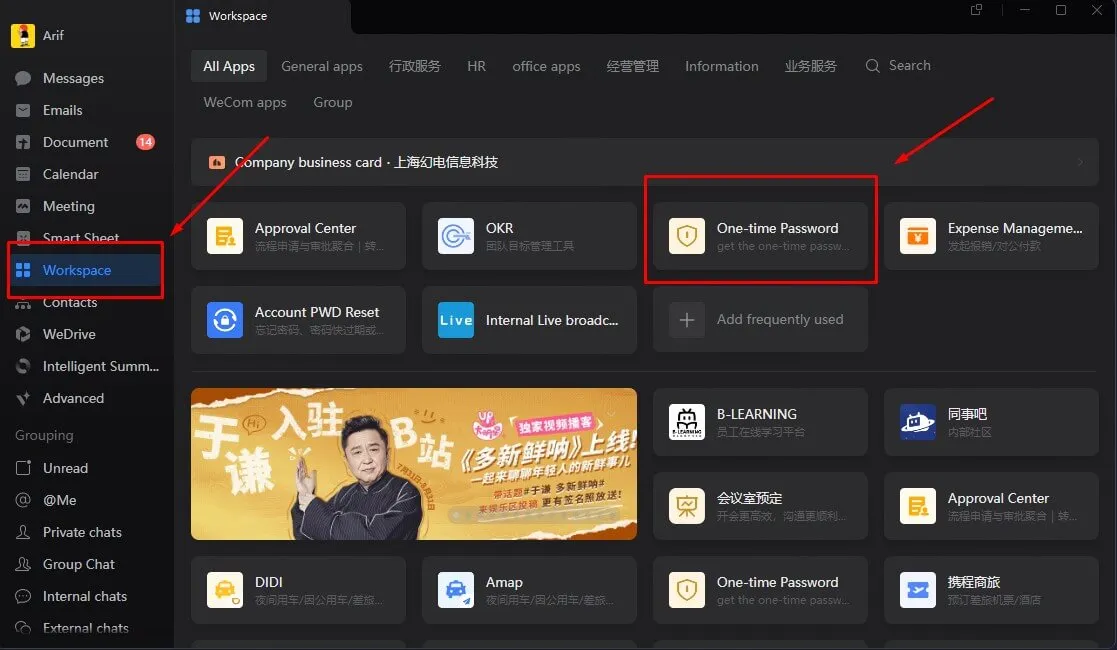
- Copy or click the 6-digit OTP code provided.
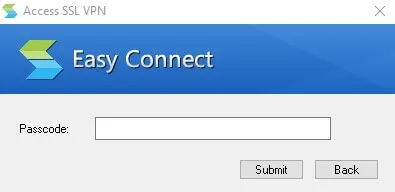
- Paste or input it into the VPN prompt and submit.
✅ Final Steps
- Once connected successfully, the BVPN app will minimize into the system tray (bottom-right corner of your screen).
- You can now access the intranet sites or other internal resources securely.
💡 Tip: You can always reopen the BVPN app from the system tray if you need to disconnect or view status.
Happy browsing! 🌐🔐